How to Design a SaaS Login and Authentication Flow?

The login and signup screens are the gateway to your product, a make-or-break moment in user experience. Research shows an overwhelming 88% of users won’t return to a site after a bad UX encounter, and a bad login experience is one of the top culprits. Yet most SaaS products treat authentication as a technical requirement rather than a product design problem.
The result is login flows with too many fields, confusing error messages, MFA that triggers at the wrong moment, and signup sequences that ask for information the product does not yet need. At Inity Agency, authentication flow design is treated as a first-class product design problem because it is the first experience every user has of the product, and it directly determines whether they reach the value it promises.
The Authentication Methods and Their Trade-offs
Email and Password
The baseline. Every user understands it. No dependency on a third party. Works for any user type.
The trade-offs: password fatigue (users forget passwords, creating a support burden), security risk (weak or reused passwords are the leading cause of account compromise), and friction on return visits when the browser does not auto-fill.
Best practice: enforce a minimum password strength requirement visually (not just on submission), allow browsers to auto-fill without interference, and offer a password reset that works via a link to the email address rather than security questions.
Social Login (Google, GitHub, LinkedIn, Apple)
One-click authentication using an existing account. Eliminates password management. Improves data quality — social login provides verified email addresses and often name and profile image without additional form fields.
Trade-offs: dependency on the third-party provider (if Google authentication is unavailable, users cannot log in), user confusion about which method they used to sign up (leading to duplicate accounts), and privacy concerns in some user populations.
Best practice: offer two to three social providers relevant to your user type (Google for most SaaS, GitHub for developer tools, LinkedIn for professional products), display the social login options prominently above email/password rather than below, and detect duplicate accounts on signup to prevent confusion on return visits.
SSO (SAML/OIDC)
Enterprise users expect to log in using their company’s identity provider (Okta, Azure AD, Google Workspace). SSO eliminates the need for the user to manage a separate credential for your product and allows IT administrators to control access centrally.
SSO is not a feature; it is a sales requirement for enterprise SaaS. Enterprise procurement teams regularly block products that do not support SSO because the inability to control access centrally creates a security risk. Implementing SSO typically involves SAML 2.0 or OpenID Connect protocols and a significant technical investment.
For products targeting SMB: SSO is a nice-to-have. For products targeting the enterprise, SSO is required before a procurement conversation can conclude positively.
Passkeys
Passkeys are device-bound cryptographic credentials that replace passwords entirely. The user authenticates using biometrics (Face ID, Touch ID, Windows Hello) or a device PIN – the private key never leaves the device, and there is nothing to phish or breach.
Passkeys are supported by all major browsers and operating systems as of 2024 and are the emerging authentication standard. They eliminate the most common attack vectors (credential stuffing, phishing) and produce the lowest-friction authentication experience — one biometric confirmation to log in, with no password to remember or reset.
For SaaS products building today, implementing passkeys as a login option alongside email/password positions the product correctly for the authentication landscape of the next five years.
Magic Links
A one-time login link is sent to the user’s email. No password required. Works well for low-frequency-use products where users are unlikely to remember a password between sessions.
Trade-offs: depends on email access (if the email client is slow or the link expires, users cannot log in), and the login flow involves switching between the product and the email client, which adds friction.
The Signup Flow: What to Ask and When
The signup form should collect only the information required to create an account. Every additional field reduces completion rate; research consistently shows that reducing form fields from four to three increases completion by 50%.
What belongs in the signup form:
- Email address (or social login – make social the prominent option)
- Password (if not using social or passkey)
- Nothing else at initial signup
What does not belong in the signup form:
- Name (collected during onboarding, not signup)
- Company name (collected during onboarding)
- Role or job title (collected during onboarding or first session)
- Phone number (collect only if required for MFA – and explain why)
- Credit card (unless immediately required – and if so, explain why at this stage)
The instinct to collect more information at signup – to qualify leads, to personalise onboarding, to enrich the CRM- is understandable and consistently counterproductive. Information collected after the user has experienced value is both more accurate (users know their role better once they have used the product) and more willingly given (users who have experienced value are more likely to invest effort in setup).
MFA: Where and When
MFA (Multi-Factor Authentication) is a security requirement for enterprise SaaS and is increasingly expected across the market. The UX design challenge is placing it correctly, at the moment where it adds security without adding disproportionate friction.
The wrong moment: Requiring MFA on every login for all users, regardless of context. This is the most common MFA design failure. Users who log in from the same device daily experience MFA as pure friction, an obstacle between them and the product rather than a security measure they understand and value.
The right approach – Adaptive MFA: Trigger MFA only when risk signals are elevated: login from a new device or IP address, login from an unusual location or time, login after a long period of inactivity, or login after failed attempts. Adaptive MFA delivers the security benefit of MFA at a fraction of the friction cost.

MFA methods, ranked by UX quality:
- Passkeys / biometric authentication – highest UX, highest security
- Authenticator app (TOTP) with copy-paste support – good UX, good security
- Push notification to mobile app – good UX, good security
- Email OTP with copy-paste support – acceptable UX, acceptable security
- SMS OTP – low security (SIM swapping), variable UX. Should be offered as recovery only, not as primary MFA
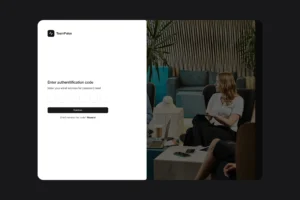
The WCAG 2.2 requirement: Criterion 3.3.8 (Accessible Authentication) requires that authentication processes do not rely on cognitive function tests, including the requirement to transcribe an OTP from a separate source without copy-paste support. Allow copy-paste for OTP codes.
The Login Screen: Design Decisions That Matter
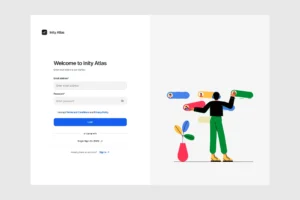
- Email detection: When a user enters an email address, the product can detect whether the account exists and was created with social login or email/password, and prompt accordingly. This prevents the most common login frustration: users who cannot remember which method they used to sign up.
- Error specificity: Generic error messages (“Invalid credentials”) are less frustrating than no feedback, but significantly worse than specific, actionable messages. “We couldn’t find an account with that email. Did you sign up with Google?” is specific. “Incorrect email or password” is not.
- Remember this device: Offering a “Remember this device” option – which reduces MFA frequency on trusted devices, directly improves daily-use login UX without reducing security for high-risk logins from new devices.
- Password visibility toggle: An eye icon that toggles password field visibility reduces the most common password entry error (mistyping while the field is obscured) and is an accessibility requirement for users with cognitive disabilities. Required.
- Forgot password flow: The password reset flow should be triggered by a clearly visible “Forgot password?” link on the login screen, send a reset link to the email address (not a temporary password), and expire the link after a reasonable but not inconveniently short period (15 minutes is too short; 24 hours is appropriate for most products).
Conclusion
Authentication is not a technical checkbox. It is the first experience every user has of the product, and its quality directly affects signup conversion, day-one retention, and enterprise sales. The decisions, which authentication methods to offer, what to collect at signup, when to trigger MFA, and how to communicate errors, are product design decisions with measurable outcomes. The hybrid model (social login plus email/password), adaptive MFA, passkeys as an emerging option, and specific error messages are the design decisions that produce authentication flows that feel effortless while remaining secure.
→ Building a SaaS product and want authentication designed as part of the product, not bolted on after? Book a Discovery Week call.
Frequently Asked Questions
Most SaaS products should offer a hybrid model: social login (Google at minimum, GitHub for developer tools, LinkedIn for professional products) alongside email and password. Offering both converts 8.5% more users than offering just one method. Enterprise SaaS products must also support SSO (SAML/OIDC) for integration with company identity providers like Okta and Azure AD. Without SSO, enterprise procurement conversations frequently stall. Passkeys are the emerging standard and should be considered as a login option for products being built today.

Ready to Build Your SaaS Product?
Free 30-minute strategy session to validate your idea, estimate timeline, and discuss budget
What to expect:
- 30-minute video call with our founder
- We'll discuss your idea, timeline, and budget
- You'll get a custom project roadmap (free)
- No obligation to work with us